Web Design Basics
Three parts work together to make a webpage
HTML
The content and structure.
CSS
The appearance and layout.
JavaScript
The logic and interaction.
A strong web page separates meaning, style, and behavior so each part is easier to update.
Project structure helps the browser find everything
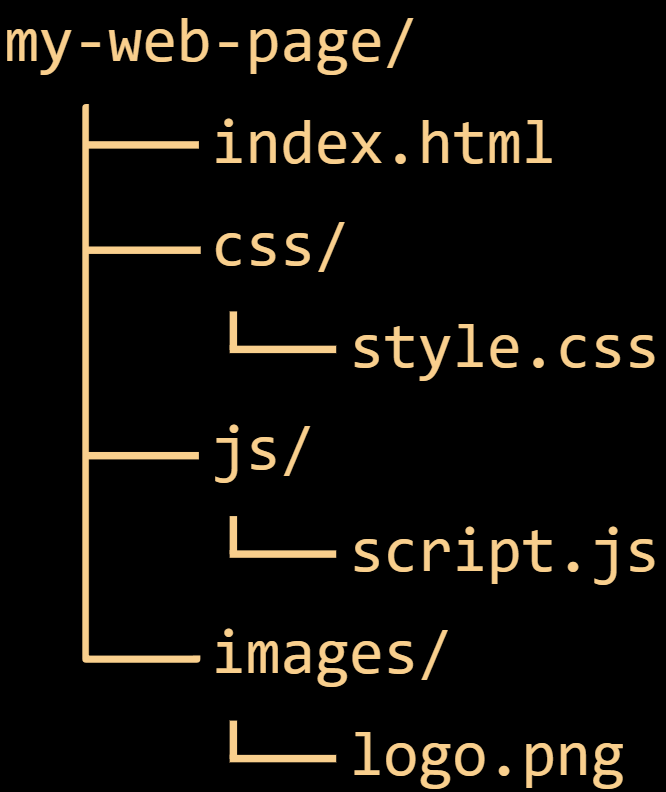
Most projects keep HTML in the main folder and place CSS, JavaScript, and image assets in their own folders.
Start by finding index.html. It is usually the main page opened by the browser and is commonly used by GitHub Pages.
HTML describes structure and content
HTML uses elements to describe what content is: headings, paragraphs, images, links, lists, sections, forms, and buttons.
<!doctype html>
<html lang="en">
  <head>
    <meta charset="utf-8">
    <title>My Page</title>
    <link rel="stylesheet" href="css/style.css">
  </head>
  <body>
    <h1>Hello, 5041!</h1>
    <script src="js/script.js"></script>
  </body>
</html>These elements show up constantly
<h1>-<h6>
Headings organize page sections.
<p>
Paragraph text for readable content.
<a>
Links to pages, files, or websites.
<img>
Displays images with alt text.
<button>
Clickable action on the page.
<form>
Collects user input.
CSS controls design
CSS chooses colors, fonts, sizes, spacing, layout, and responsive behavior.
body {
  font-family: Arial, sans-serif;
  background: #1f1f1f;
  color: white;
}

.card {
  padding: 1rem;
  border-radius: 12px;
}Use a separate CSS file when possible
Inline or internal
CSS can be written directly in HTML, but it gets harder to reuse and maintain.
External file
A better practice is to link a separate CSS file inside the <head>.
<link rel="stylesheet" href="css/style.css">Selectors tell the browser what to style
CSS selectors can target groups of elements, specific classes, or unique IDs.
Element
p targets all paragraphs.
Class
.card targets anything with class="card".
ID
#main-title targets one unique element.
p { font-size: 40px; }
.card { border: 3px solid rgb(100, 50, 50); }
#main-title { color: #980000; }Every element is a box
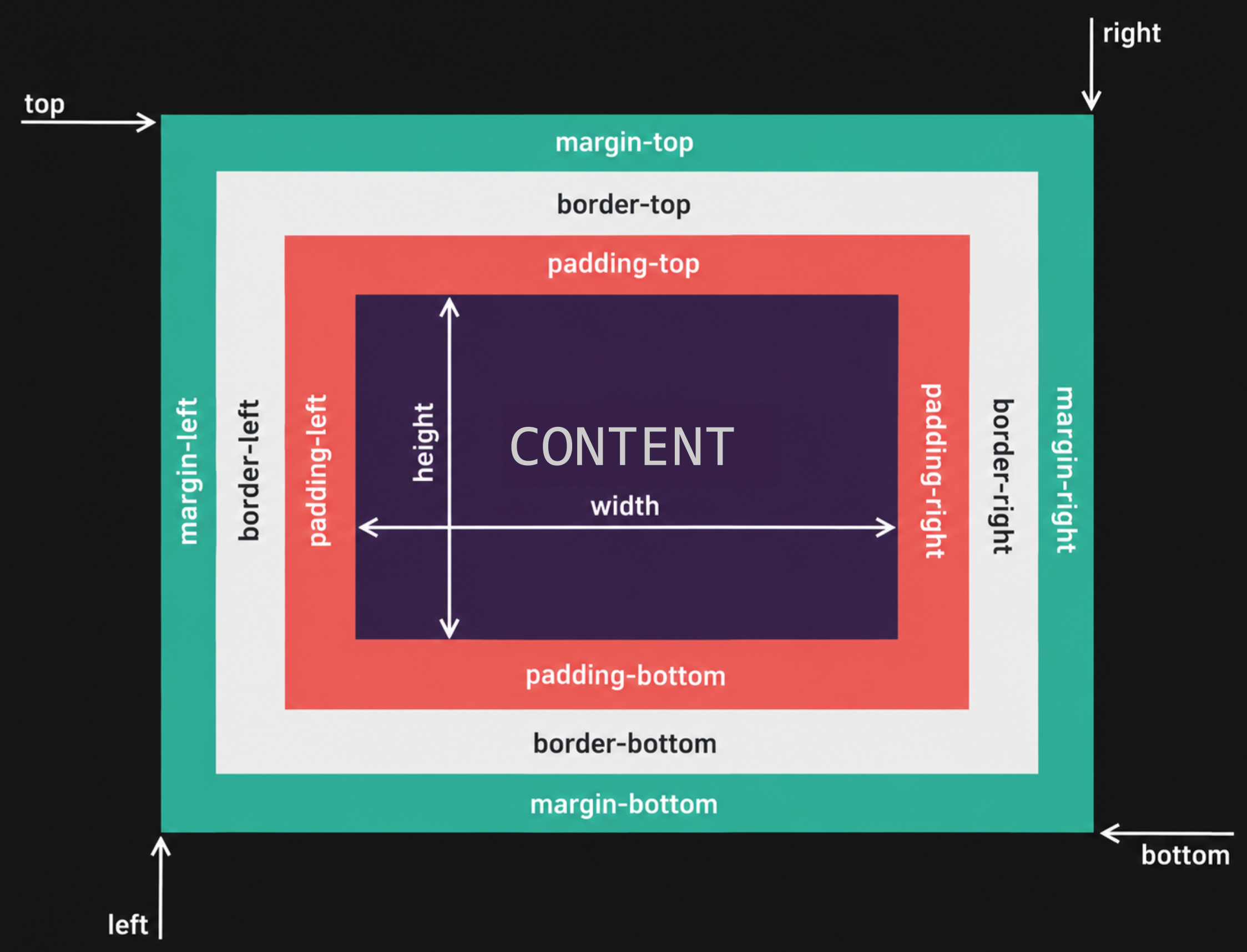
The CSS box model treats every HTML element as a box made of content, padding, border, and margin.
These layers determine the element’s size and the space around it.
Flexbox and Grid arrange content
CSS layout tools control how elements are arranged and spaced on a webpage.
Flexbox
Best for arranging items in one row or one column.
Grid
Best for two-dimensional layouts with rows and columns.
Pages need to work at different sizes
Screen sizes vary and browser windows can be resized during use.
Responsive pages adjust to different display sizes.
@media only screen and (min-width: 400px) { ... }
@media only screen and (min-width: 700px) { ... }
@media only screen and (min-width: 1000px) { ... }
JavaScript adds behavior
JavaScript can respond to clicks, update text, validate forms, fetch data, and change the page without reloading.
const button = document.querySelector('#refresh');

button.addEventListener('click', function () {
  console.log('Refresh requested');
});Link JavaScript after the page content
Directly in HTML
Useful for quick tests, but can become messy.
Separate JS file
A better practice is to add a separate JavaScript file near the end of the body.
<script src="js/script.js"></script>Spend time with the basics
If JavaScript is new to you, practice variables, functions, conditionals, events, arrays, and DOM selection.
These skills make interactive websites and web apps possible.
Debugging is a normal part of web design
- Test one small change at a time.
- Inspect elements and CSS with Developer Tools.
- Confirm file paths, links, and filenames.
- Refresh the page and clear the browser cache.
- Use
console.log()to check JavaScript values. - Validate HTML and CSS syntax.
- Test in multiple browsers and screen sizes.
Most errors are small but specific
Wrong file path
The browser cannot find the CSS, JS, or image file.
Missing punctuation
One missing quote, bracket, or semicolon can break code.
Selector mismatch
JavaScript or CSS targets a class or ID that does not exist.
Cache confusion
The browser shows an older copy. Hard refresh and test again.
Use DevTools to inspect and debug
Open
Right-click a page and choose Inspect.
Elements
View and test HTML and CSS.
Console
Read JavaScript errors and test commands.
Network
Check file and API requests.
Build and debug a small page in JSFiddle
- Open JSFiddle in a new page.
- Copy in the HTML, CSS, and JavaScript starter code.
- Troubleshoot and fix the image problem.
- Create your own modification or add-on to the webpage.
An IDE combines coding, running, testing, and debugging
An Integrated Development Environment combines tools for writing, running, testing, and debugging code in one place.
JSFiddle is useful for simple web development and testing. Visual Studio Code is another development tool for local projects.
Copy into JSFiddle
<main class="card">
  <h1>BEARY Viewer</h1>
  <p>Click the button to display BEARY the safety bear.</p>

  <button id="beary-button">Show BEARY</button>

  <div id="image-container"></div>
</main>Copy into JSFiddle
body {
  margin: 0;
  min-height: 100vh;
  display: grid;
  place-items: center;
  font-family: Arial, sans-serif;
  background: #1f1f1f;
  color: white;
}

.card {
  width: min(500px, 85%);
  padding: 30px;
  text-align: center;
  background: #303030;
  border-top: 6px solid #980000;
  border-radius: 10px;
}

button {
  padding: 12px 20px;
  border: none;
  border-radius: 6px;
  background: #980000;
  color: white;
  font-size: 18px;
  font-weight: bold;
  cursor: pointer;
}

button:hover {
  background: #666666;
}

#image-container {
  margin-top: 24px;
}

#image-container img {
  width: 100%;
  border-radius: 8px;
}Copy into JSFiddle
const button = document.querySelector("#beary-buton");
const imageContainer = document.querySelector("#image-container");

button.addEventListener("click", function () {
  const bearyImage = document.createElement("img");

  bearyImage.src =
    "https://github.com/5041CyBears/training-modules/blob/main/assets/BEARY.png?raw=true";

  bearyImage.alt = "BEARY the Safety Bear";

  imageContainer.replaceChildren(bearyImage);
});Make the page your own
- Change the page colors.
- Change the font or text size.
- Add a short safety fact.
- Add a caption below the image.
- Add a button to remove the image.
- Add a reset button.
- Hide the button after the image appears.
- Add a second animal image button.
- Make the layout responsive for smaller screens.
- Let the user enter a custom image URL.